This article provides supplemental details specific to how Cadmium Identity works in Eventscribe Onsite.
Cadmium Identity provides trusted, secure authentication for event and continuing education software. Many different applications use it to handle login. For general login questions, such as entering your email address, creating an account, verifying your email address, or resetting your password, read the general Cadmium Identity articles and Quick Troubleshooting Guide.
Logging In to Eventscribe Onsite
Eventscribe Onsite always uses the same login URL: onsite.gocadmium.com.
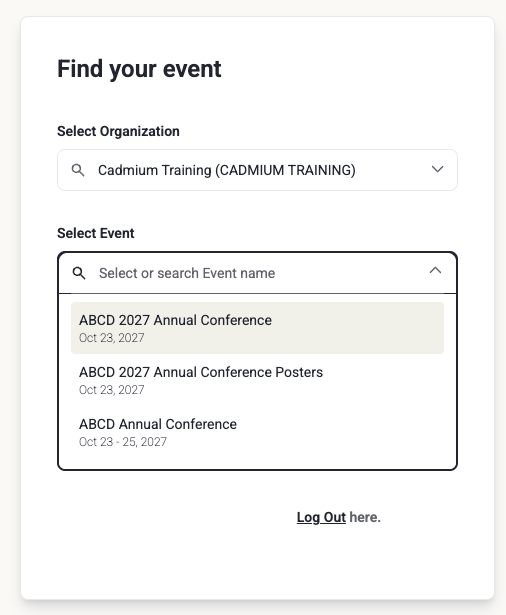
After you log in, Eventscribe Onsite checks your email address against its own permissions. If you have access to at least one organization and one event, the Find your event screen opens.
- Select your organization. Most people have only one.
- Select your event. You’ll only see events you have permission for.
- Select Continue to complete your login.
If you’re logged in with the wrong email address, select Log Out on the Find your event screen to start over.
User Permissions
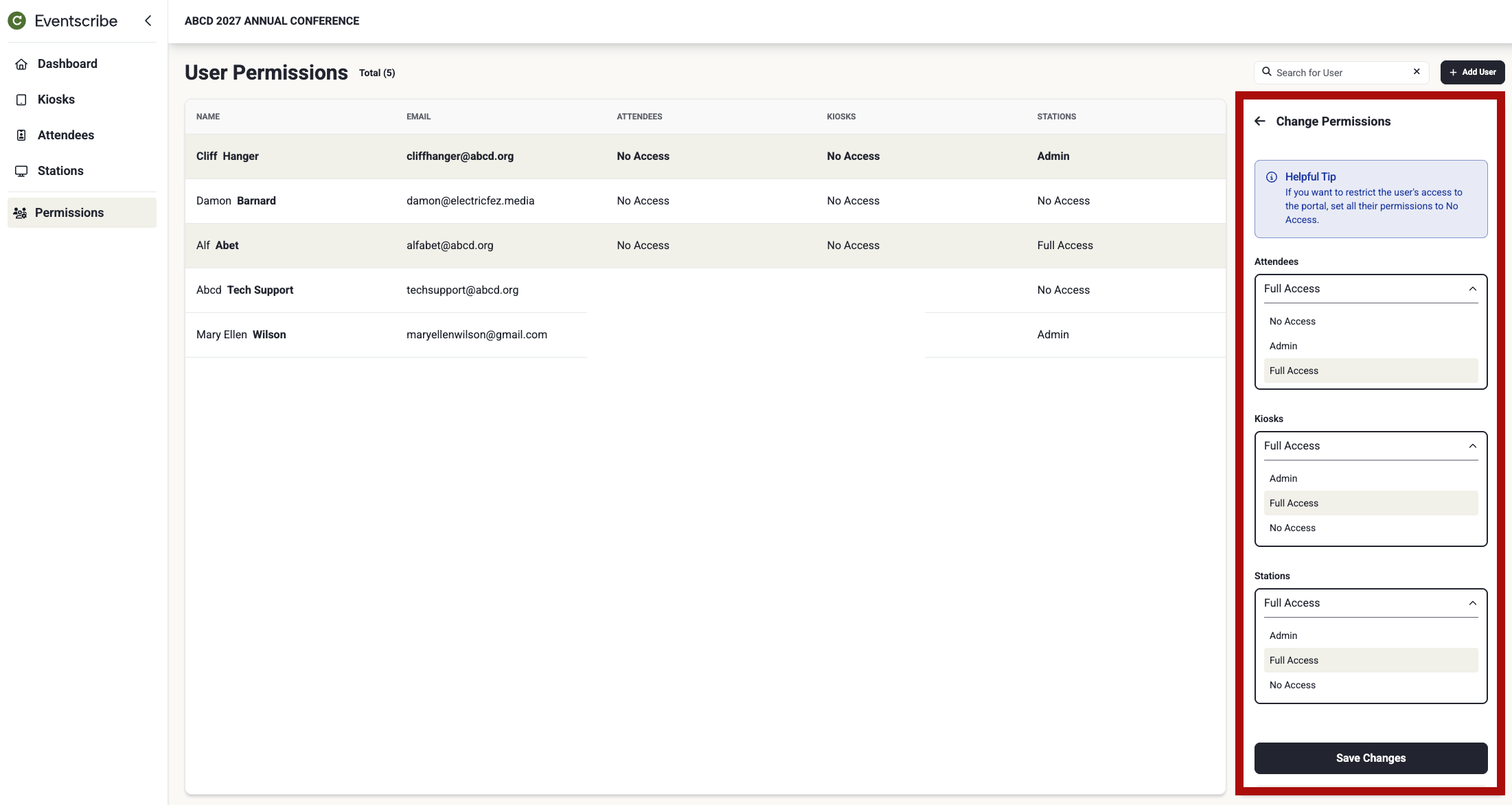
You may have a Cadmium Identity account, but that doesn’t mean you have permission to log in to Eventscribe Onsite. Access is managed separately by your administrator for each event.
To log in, your email address must be on the event’s User Permissions list with Admin or Full Access to at least one of Attendees, Kiosks, or Stations. If all three are set to No Access, you won’t be able to log in. Your permission level for each one also determines what you can do once you’re in the portal.
Access Restricted
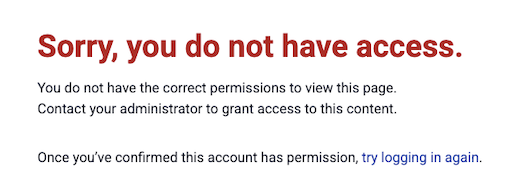
If you don’t have permission, you’ll see a Sorry, you do not have access message. Try the following:
- Confirm the email address. Log in with the same email address your administrator added to the User Permissions list. It needs to match exactly.
- Confirm your permissions. Ask your administrator to check that you have Admin or Full Access to at least one of Attendees, Kiosks, or Stations.
Once your administrator confirms you have permission, select try logging in again. That logs you out and returns you to the login screen, where you can log in with the correct email address.
If you’ve checked both and still need help, contact Eventscribe technical support using the contact details in the footer of this page. Provide the event and organization name as well as the email address you are trying to log in with.
Manage Account
Eventscribe Onsite doesn’t have its own user profile, so your account name shown comes from your Cadmium Identity account. To update it:
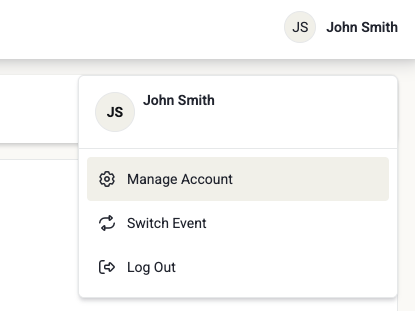
- Select your name in the upper right corner of the page.
- Select Manage Account and a new tab will open.
- Once you’ve saved your changes, close the tab and refresh Eventscribe Onsite to see the update.
For more information about what you can update in your Cadmium Identity account, read Cadmium Identity - Managing Your Account.
Was this article helpful?
That’s Great!
Thank you for your feedback
Sorry! We couldn't be helpful
Thank you for your feedback
Feedback sent
We appreciate your effort and will try to fix the article